Pointer - Element Inspector for DevTools
by Mr Violets5.0
1 reviews
145
users
Published
August 15, 2025
Screenshots


Description
Pointer enhances Chrome's built-in element inspector with a persistent, intuitive DOM navigation tool that stays active while you work. Unlike the default DevTools inspector that turns off after selecting an element, Pointer keeps running so you can quickly inspect multiple elements without constantly reactivating the tool.
FEATURES
— Always-On Element Selection - Navigate the DOM using arrow keys or click to select elements. The pointer stays active between selections.
— Visual Box Model Display - See margin, padding, and content areas with color-coded overlays.
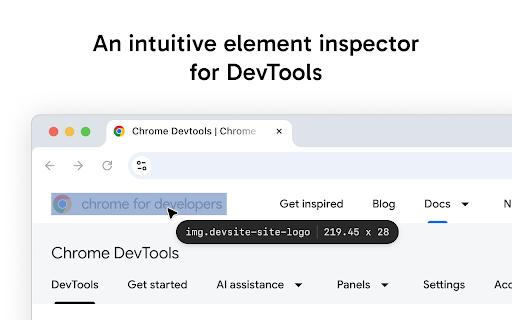
— Element Information - Hover over any element to see its tag name, dimensions, CSS classes, and behavioral badges (flex, grid, media, scroll containers and event listeners).
— Built-In Ruler - Hold Alt to see pixel distances between selected and hovered elements.
— DevTools Integration - Selected elements automatically sync with Chrome DevTools Elements panel. The inspector scrolls elements into view and maintains selection state when DevTools is reopened.
— Pass-Through Mode - Hold "`" (backtick) to temporarily interact with page elements normally while keeping the inspector active.
— DOM Manipulation - Cut, copy, paste, delete, and duplicate (Cmd/Ctrl+D) elements directly in the page. Full undo/redo support.
PRO FEATURES
— Inline Attribute Editor - Press "/" to add attributes, classes, and properties to selected elements without switching to the DevTools elements panel.
— JavaScript Console - Press ";" to execute JavaScript commands with the selected element as "this" context. Perfect for quick DOM modifications and debugging.
— Selector Search - Press "f" to enter find mode and highlight all elements matching a CSS selector in real-time.
KEYBOARD SHORTCUTS
Navigation
— Arrow Keys - Navigate between elements (up/down for siblings, left for parent, right for children).
Inspection Tools
— Alt - Show measurement rulers between selected and hovered elements
— ` (backtick) - Hold to enable pass-through mode so you can interact with the web page
Editing
— Cmd/Ctrl + C - Copy selected element
— Cmd/Ctrl + X - Cut selected element
— Cmd/Ctrl + V - Paste element
— Cmd/Ctrl + D - Duplicate selected element
— Backspace - Delete selected element
— Cmd/Ctrl + Z - Undo last change
— Cmd/Ctrl + Shift + Z - Redo last change
Pro Input Modes
— / - Enter attribute editing mode
— ; - Enter console mode
— f - Enter CSS selector search mode
— Esc - Exit current input mode
Add to Chrome
Quick Info
- Version
- 1.0.3
- Size
- 68.33KiB
- Price
- Free
- Type
- Extension
Categories
Languages
DeutschEnglishespañolfrançaisрусский日本語한국어