FontFinder & WordCounter
by minhdung254.2
5 reviews
394
users
Published
July 11, 2023
Screenshots

Description
Step 1: Select the paragraph you want to find:
Choose the paragraph you wish to find and count the number of words, characters, colors, and font styles.
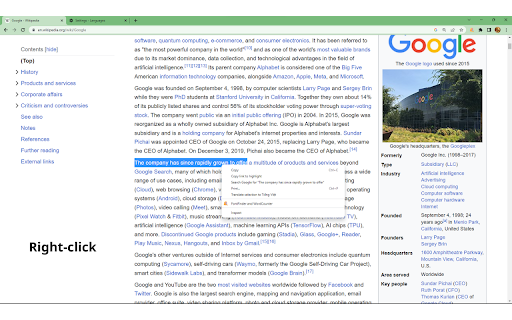
Step 2: Right-click to bring up the menu:
Hover over the paragraph and right-click. A menu will appear with various options.
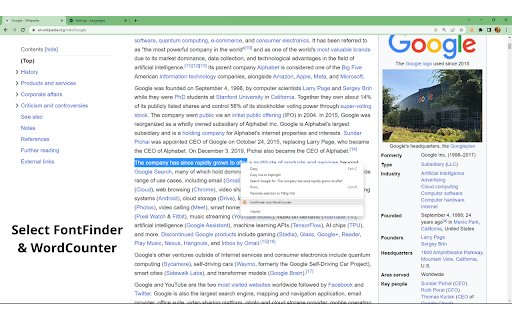
Step 3: Click on "FontFinder & WordCounter":
In the menu, locate and click on the option "FontFinder & WordCounter." This will open a new window.
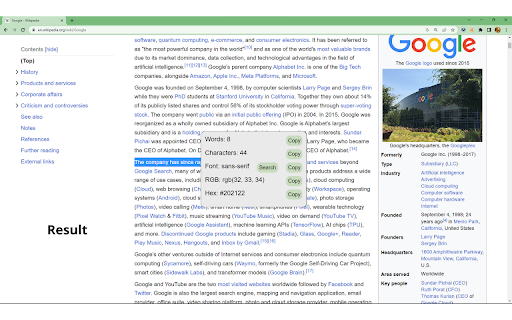
Step 4: View the results of word count, character count, colors, and font styles:
After clicking on "FontFinder & WordCounter," a table will display information about the number of words, characters, colors, and font styles of the selected paragraph.