Freeze DOM
by Nemo4.2
10 reviews
1.0K
users
Published
December 31, 2024
Screenshots

Description
How to use:
- Step 0: Open DevTools Panel (F12 or Right Click -> select 'Inspect')
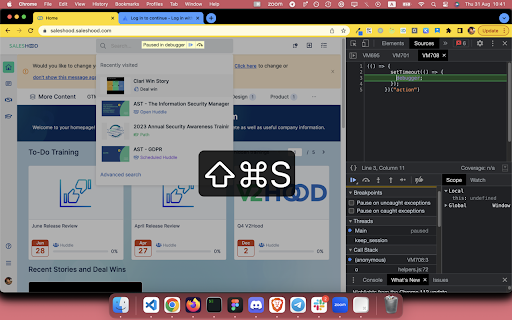
- Step 1: Right Click -> select 'Freeze DOM' or Press Cmd + Shift + Y (on Mac) / Cmd + Shift + Y (on Window, Ubuntu)
Source code for those who's curious: https://github.com/coolcorexix/freedom-on-demand
If you find this useful, please consider donating to support my work. It means a lot to me: https://www.buymeacoffee.com/coolcorexil
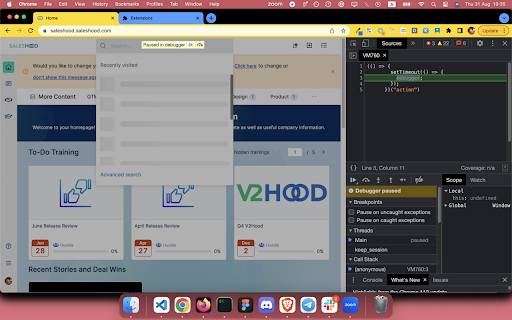
Right click on tab content and choose "Freeze DOM" (while devtool panel is open) to freeze the state of website on demand.
With a frozen DOM, you can:
- Inspect an UI part that only available while hovered / focused (for example: keeping the auto complete dropdown of a text input visible)
- Take a snapshot of an in-progress state (for example: loading state)
🔭 Explore more dev tools at: https://nemothecollector.dev/products
Note: The shortcut might be overridden by built-in settings of some browsers for example Arc and Microsoft Edge. To fix it:
- For Arc: go to arc://extensions/shortcuts and update the shortkeys
- For Microsoft Edge: follow this instruction https://www.webnots.com/how-to-assign-keyboard-shortcut-to-extension-in-microsoft-edge/