Day One
by Automattic Inc.5.0
5 reviews
936
users
Published
November 18, 2025
Screenshots



Description
Save to Day One
Capture what matters while you browse.
The Save to Day One Chrome extension helps you quickly send web links, text highlights, and notes to your Day One journal. Whether you’re researching, bookmarking, or simply want to remember something meaningful, this extension gives you an easy way to preserve it all.
Great for:
• Saving articles to reflect on later
• Capturing research or learning resources
• Bookmarking ideas and inspiration
• Clipping quotes and highlights to your journal
• Keeping a digital log of what catches your attention each day
Features
• Save your current page – Click the Day One icon in your browser to instantly capture the title and URL of the page you’re viewing. Add an optional note or tags, then send it to your journal.
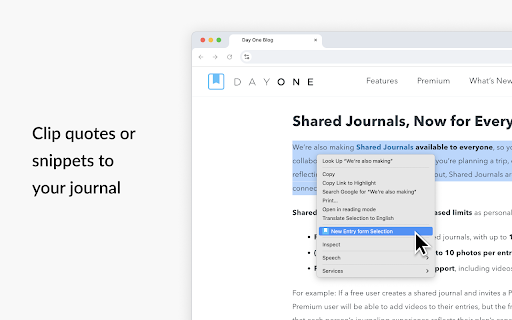
• Highlight and save text – Select any text on a webpage, right-click, and choose "Save to Day One" from the menu. The selected text will be saved as a new journal entry.
• Add context – Write a quick note or add custom tags before saving. Every new journal entry becomes part of your personal timeline in Day One.
How It Organizes Your Entries
• New Bookmarks Journal – When you use the extension for the first time, Day One automatically creates a new journal called Bookmarks. All entries saved through the extension go here by default, keeping your web captures organized and separate from your personal entries, unless you choose otherwise.
• Default Journal Control – Prefer to save to another journal? You can set your default journal in the extension settings.
• Optional tags – Add your own tags when saving so you can find entries later by topic or theme.
Settings & Customization
• Default journal – Select which journal new entries are saved to.
• One-click saving – Enable “Save without editing” to skip the entry editor and save instantly.
• Open entries in – Choose whether saved entries open in the Day One Mac app or web app.
• Theme – Set your preferred appearance: Light, Dark, or System.
Private by Design
Like everything in Day One, your content is always yours. Anything saved through the extension is end-to-end encrypted, stored securely in your private account, and synced across your devices. We never collect or share your browsing data.
Syncs Across Your Devices
Entries saved through the extension are instantly available in the Day One app on iPhone, iPad, Mac, and Android. From desktop, you can open entries immediately in Day One for Mac or web. With Premium, your journal stays in sync across all your devices—ready to expand, edit, or revisit anytime.
To use the extension, you’ll need to sign in to your Day One account. If you don’t have one yet, you can sign up here: https://dayone.me
How to Get Started
1. Install the extension.
2. Click the Day One icon in your browser.
3. Sign in with your Day One account. Simply use the QR code for easy login on web if you're logged in on your mobile device.
5. Start saving.
About Day One
Day One is the trusted journaling app used by millions of people to capture life as they live it. With beautiful design, end-to-end encryption, multimedia support, and easy exporting, it’s the best place to write your story.
Learn more at https://dayoneapp.com
Add to Chrome
Quick Info
- Version
- 1.3.5
- Size
- 881KiB
- Price
- Free
- Type
- Extension
Categories
Languages
English (United States)