XTag Google Analytics: Record & check UA,GA4
by Denis Rousseau5.0
2 reviews
522
users
Published
June 17, 2025
Screenshots
Description
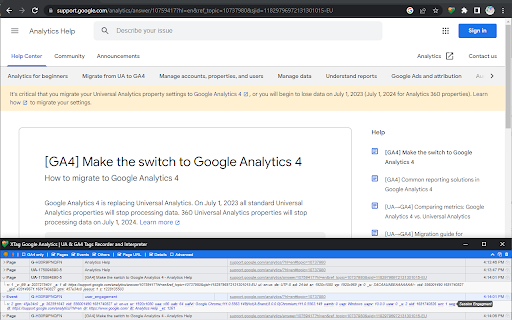
XTag for Google Analytics allows to collect, detail and categorize all Universal Analytics and GA4 tags.
Extension icon:
• Click on grayed icon to start tag recording and highlight the icon. Navigate any GA-tracked website.
• If an Adblocker prevents tag firing, it's not displayed but copied to the clipboard while you're notified.
• Click highlighted icon again to reopen the extension window.
• Closing the extension window ends recording and grays out the icon.
Extension window:
• Click Orange LED icon to pause/resume recording.
• Click Bolt icon to toggle window popup on each tag.
• Check "GA4 only" to ignore legacy UA tags.
» Note: even hidden, UA tags are still recorded, so they will be displayed when unchecked.
• Toggle "Pages" or "Events" or "Others" (Display advertising, Timing...) to show/hide them.
» Note: even hidden, tags are still recorded, so they will be displayed when checked again.
• Check "Page URL" to see the URL that triggered the tag.
• Check "Details" to see a selection of data.
• Check "Advanced" to see all data.
• Click on chevron to collapse control bar (or double click anywhere on it), click on collapsed bar to expand it.
• Double-click on tag type or click on its arrow to show/hide all its details.
• Right-click on main tag values to copy them.
• Mouse hover advanced details to see parameters meaning.
• Click Copy icon to copy tags summaries as TSV (Excel).
• Click Table icon to copy tags queries as TSV (Excel).
• Click on Copy icon on row's left to copy only this tag summary, without header.
• Click Trash icon to clear all recorded tags (after confirmation).
Add to Chrome
Quick Info
- Version
- 9.0.0
- Size
- 298KiB
- Price
- Free
- Type
- Extension
Categories
Languages
English (United States)