cleanly print
by suziwen14.4
5 reviews
1.0K
users
Published
June 20, 2023
Screenshots


Description
### cleanly print
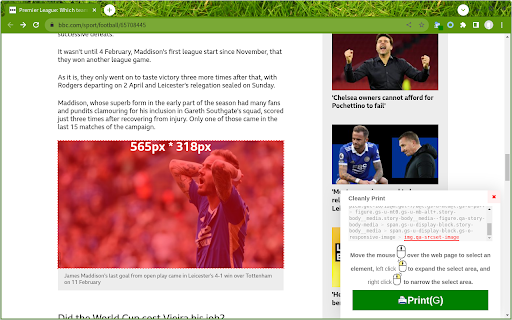
Select what you want print the part area of the page, and remove annoying elements, then print a clean PDF.
Features
* simple and easy, just select what you want, and delete what you do not wish to, then print.
Steps
* Right-click the mouse, trigger the context menu, and Select the `cleanly print` menu.
* Move the cursor to select which area will be printed, and then press the `keep` button
* Move the cursor to select which area will be removed, and then press the `exclude` button
* Press the `Print` button, and Done.
Shortcuts
a: Keep the selected area, remove other elements
s: Remove the selected area
d: Cancel the selected area, reselect a new area
f: Cancel all removed elements
g: Print to PDF
q: Expand the selected area
w: Narrow the selected area
ESC: Exit `cleanly print` mode
Add to Chrome
Quick Info
- Version
- 0.0.2
- Size
- 71.07KiB
- Price
- Free
- Type
- Extension
Categories
Languages
English (United States)